 FluentSprout
Getting started
Getting started
1. Sign in
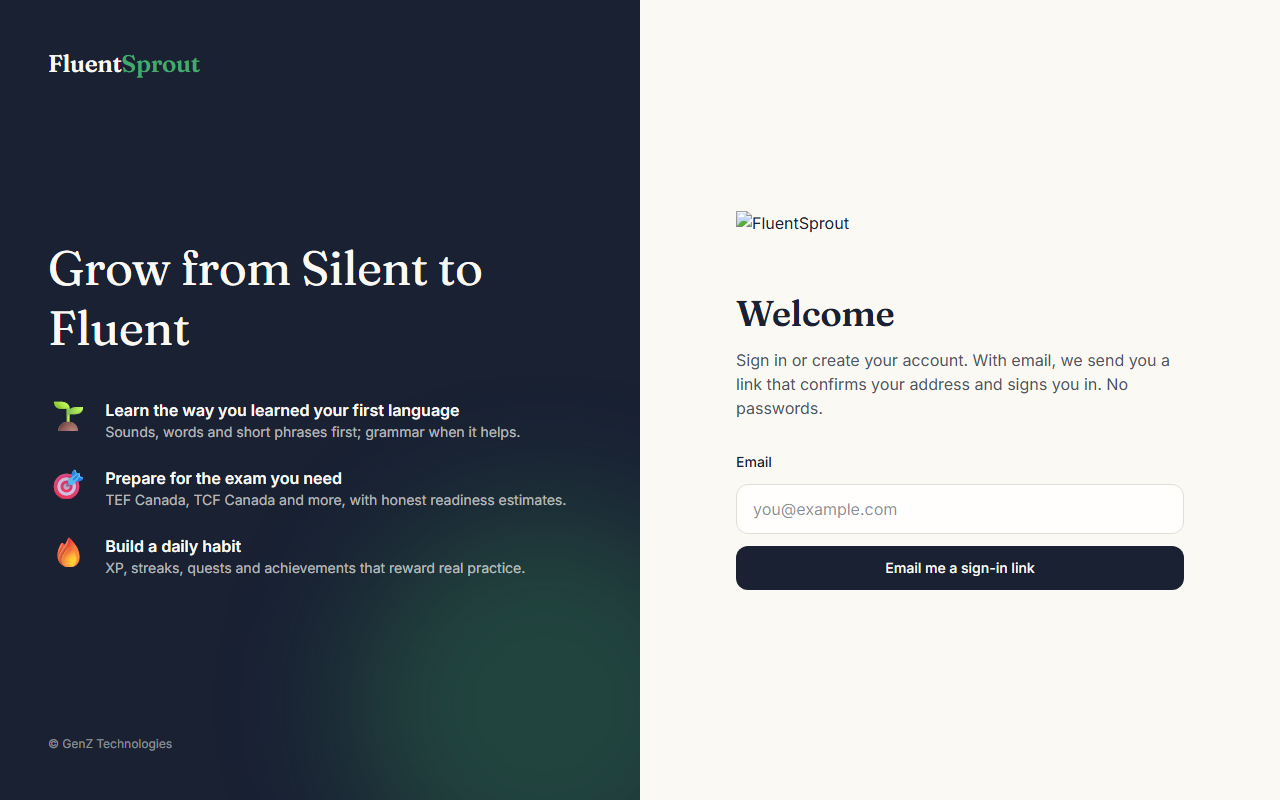
Open the app and choose Continue with Google, or type your email and press Email me a sign-in link. Open the email and tap the link: that confirms your address and signs you in. The link works once and expires after 20 minutes. There is no password to remember.
At work? If your organisation uses single sign-on, type your work email, then choose Sign in with your organisation (SSO). Your company's own sign-in and MFA apply. If it says there are no free seats, ask your manager to free one.
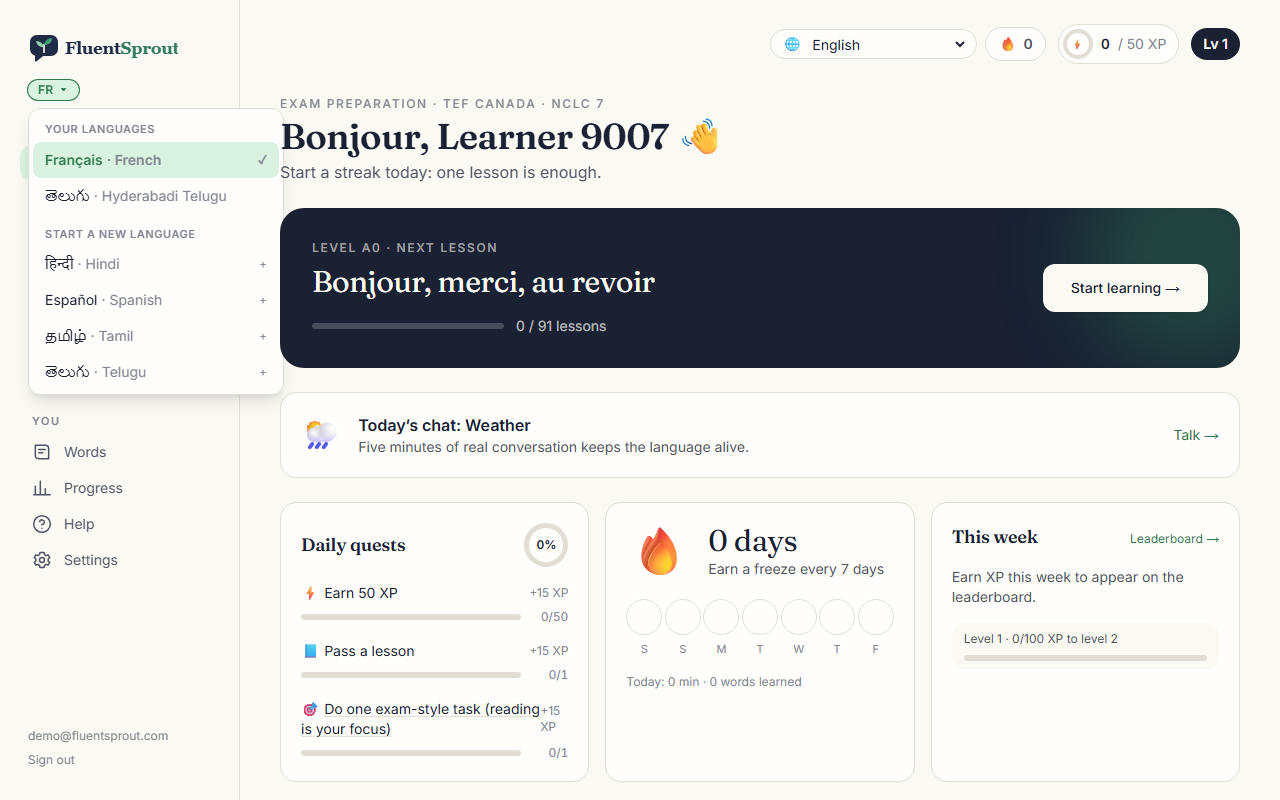
Switch languages any time: tap the language badge (for example FR) at the top left. Each language keeps its own progress. Pick a new one to set it up.
2. Choose what you're learning
Pick the language you want to learn, then how you want to learn it:
- Learn for yourself: choose where you're starting (for example "complete beginner") and where you want to get to.
- Prepare for an exam: choose the exam (for example TEF Canada), your target score (for example NCLC 7) and your exam date. You get the core course plus that exam's preparation track.
You can also choose a regional variety where it matters (for example French from France or from Canada). Change any of this later in Me.
3. Choose the language you learn from
Use the language menu at the top right of any page to see explanations, hints and feedback in your language. Anything other than English is machine-translated.
4. Take your first lesson
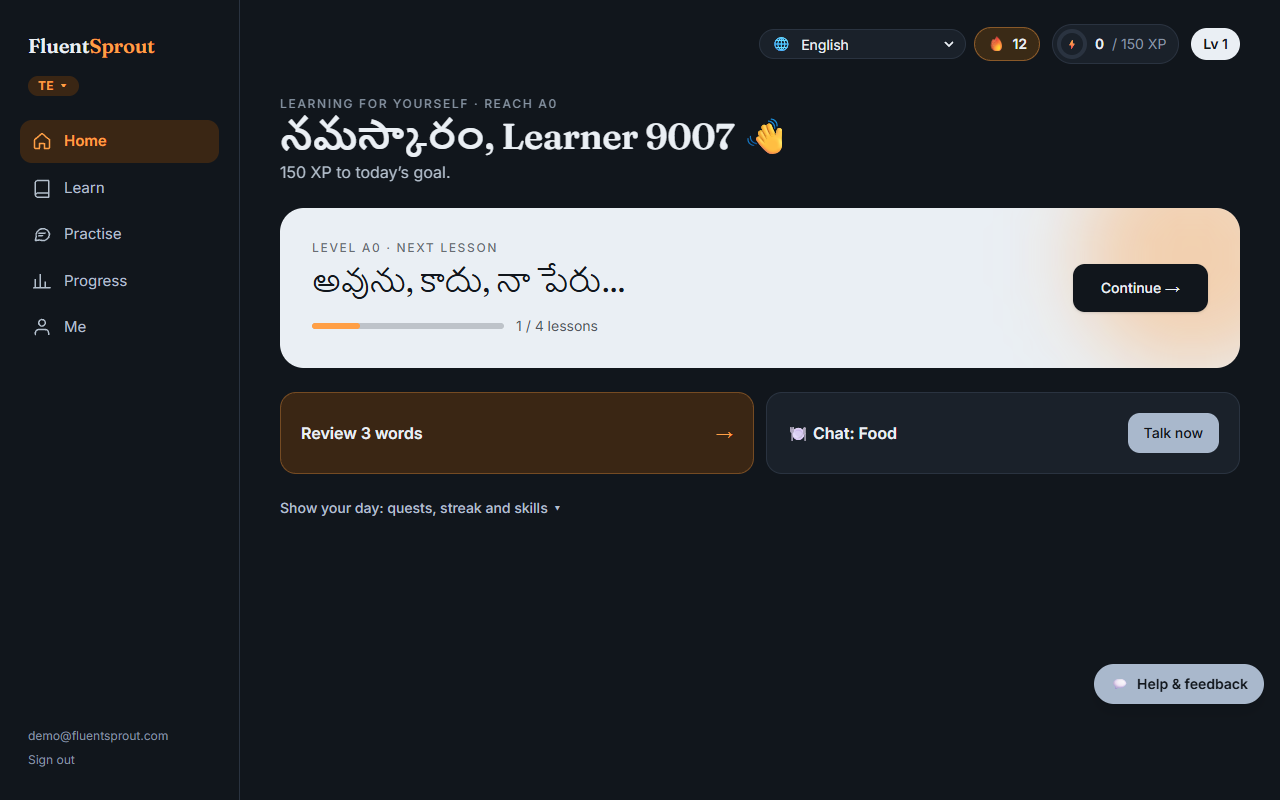
On Home, press Start learning (new learners begin with First words), or go to Learn and press Begin. Each lesson teaches a little, lets you practise and ends with a short check. Score 80% on the check to open the next lesson.
5. Make it a habit
Five to fifteen minutes a day beats an hour once a week. Turn on the evening reminder in Me → More settings → Personalise.
More in Getting started: On your phone, and fixing common problems. All help articles. Still stuck? Email support@fluentsprout.com.